

Truly for Zoom
This guide explains how to add the Truly Zoom app, use it during meetings, and remove it from your Zoom account.Prerequisites
- You have a Zoom account that can install apps from Zoom Marketplace
- The Truly app is installed from Zoom Marketplace
- You can join or host a Zoom meeting
Adding the App (Required)
- Install Truly from Zoom Marketplace.
- Start or join a Zoom meeting.
- In the meeting controls, click Apps.
- In My apps, select Truly Authentication and Deepfake….
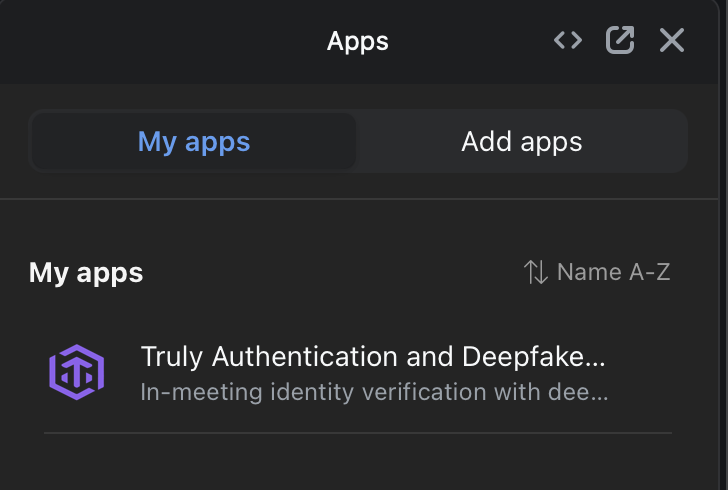
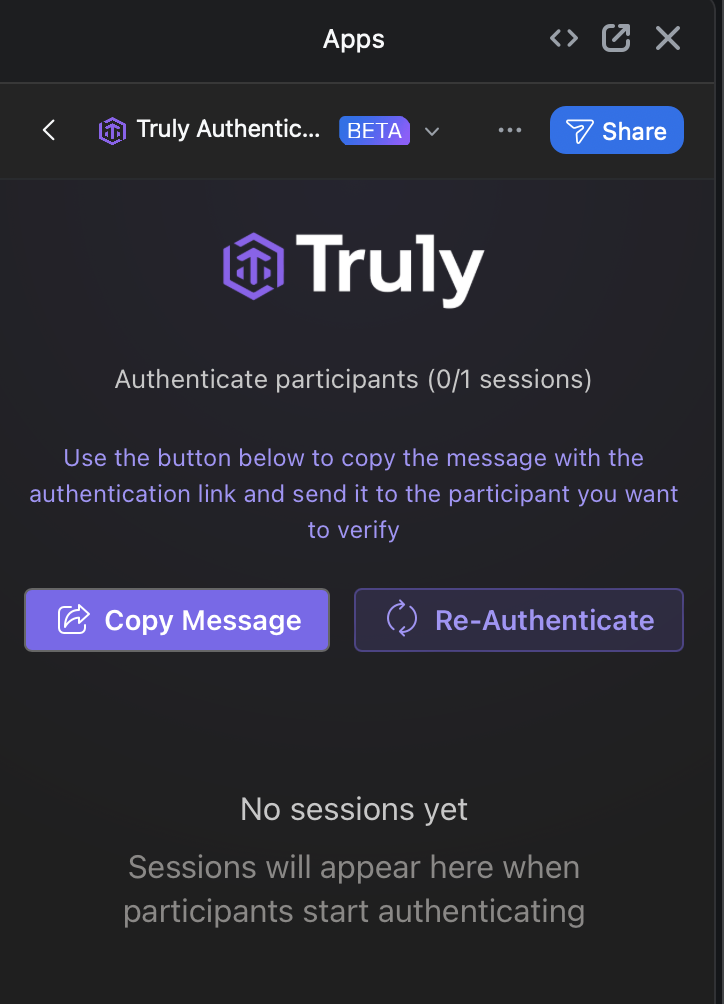
- The Truly panel opens inside Zoom.
 For help if something does not load, go to Troubleshooting.
Usage (Required)
Feature: Send participant authentication link
Use case: Verify the identity of a candidate or participant during a live Zoom meeting. Prerequisites:- Truly app is opened inside the Zoom meeting
- At least one participant is present in the meeting
- Click Copy Message in the Truly app.
- Paste and send that message in the Zoom chat.
- Ask the participant to open the link and complete the authentication session.
Feature: Review session result and metadata
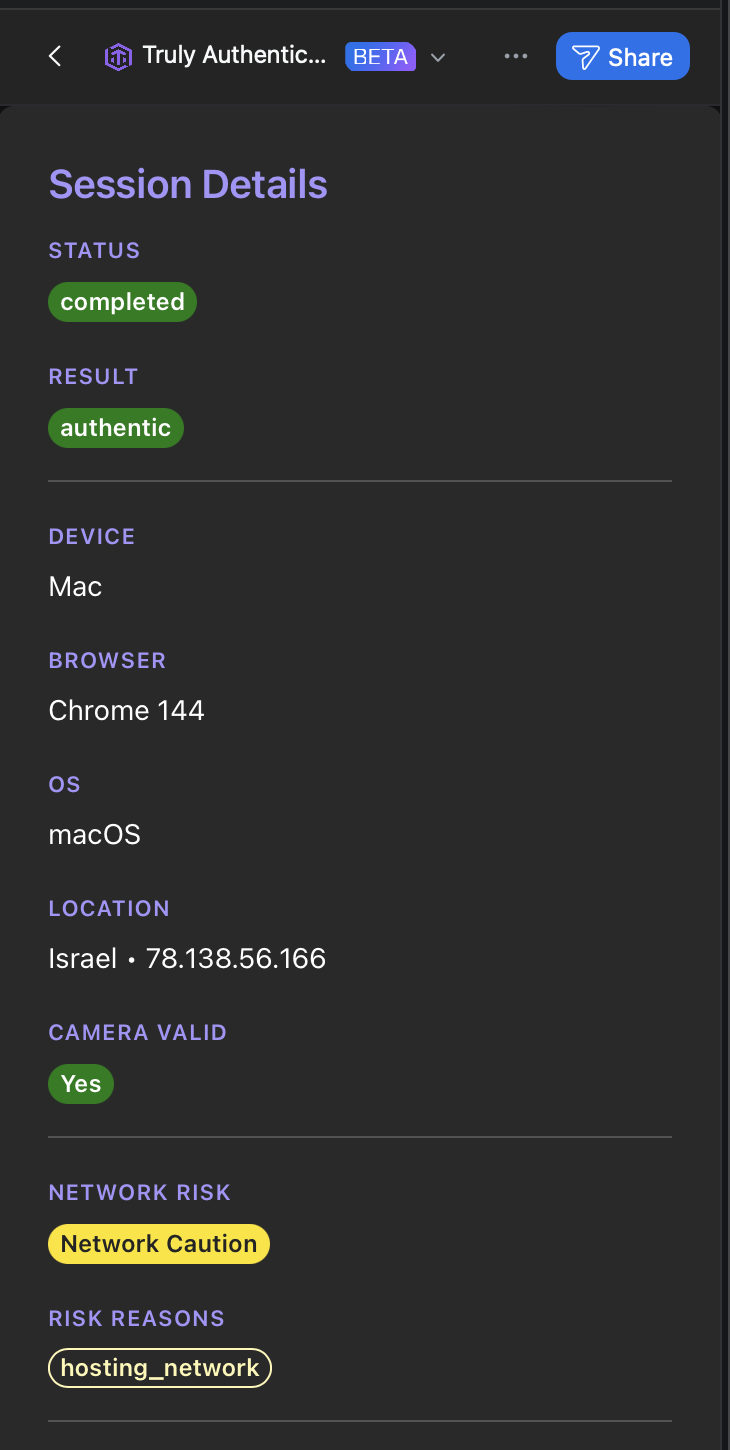
Use case: Confirm if a participant is authentic, suspicious, or requires additional review. Prerequisites:- The participant has completed the authentication flow from the link
- Session status (for example, completed)
- Result (for example, authentic or suspicious)
- Metadata such as device, browser, OS, location, and risk indicators
Removing the App (Required)
- Open Zoom Marketplace and go to Manage > Added Apps.
- Find Truly Authentication and Deepfake….
- Click Remove (or Uninstall) and confirm.
Implications of de-authorization
- You can no longer launch Truly from Zoom meetings on that account.
- New authentication sessions cannot be created until the app is installed again.
- Existing historical results already generated in your Truly workspace may remain available for compliance/audit needs.
Data handling after removal
- Removing the app stops new Zoom-triggered data collection from that account.
- If you also want previously collected session data deleted, contact support at
support@truly.wsand include your workspace details.
Troubleshooting
- App not visible in Zoom meeting: confirm the app is installed on the same Zoom account currently in the meeting.
- Panel does not open: close/reopen Zoom, then relaunch the app from Apps.
- Participant cannot complete authentication: resend the copied message and confirm the participant opens the latest link.
support@truly.ws.